Apply Design AI vs AI HomeDesign: Cost, Speed, Control
Apply Design AI vs AI HomeDesign: compare pricing per image vs credits, turnaround, DIY control, 360° support, and what a full listing photo set costs in 2026.
Apply Design AI solves a very specific listing problem: place furniture by hand, control the look across angles, and even stage a 360° panorama for a tour. AI HomeDesign solves a different one: finish an entire listing photo set fast, with staging plus edits that usually force a second tool.
That difference shows up in the math. Per-image coins can feel perfect for a single hero shot, then get expensive when a set needs declutter, restyle, and a twilight exterior.
This comparison stays on documented pricing and workflow, plus the decision checks that keep images safe for MLS use.
At a glance
Apply Design AI vs AI HomeDesign: The short answer
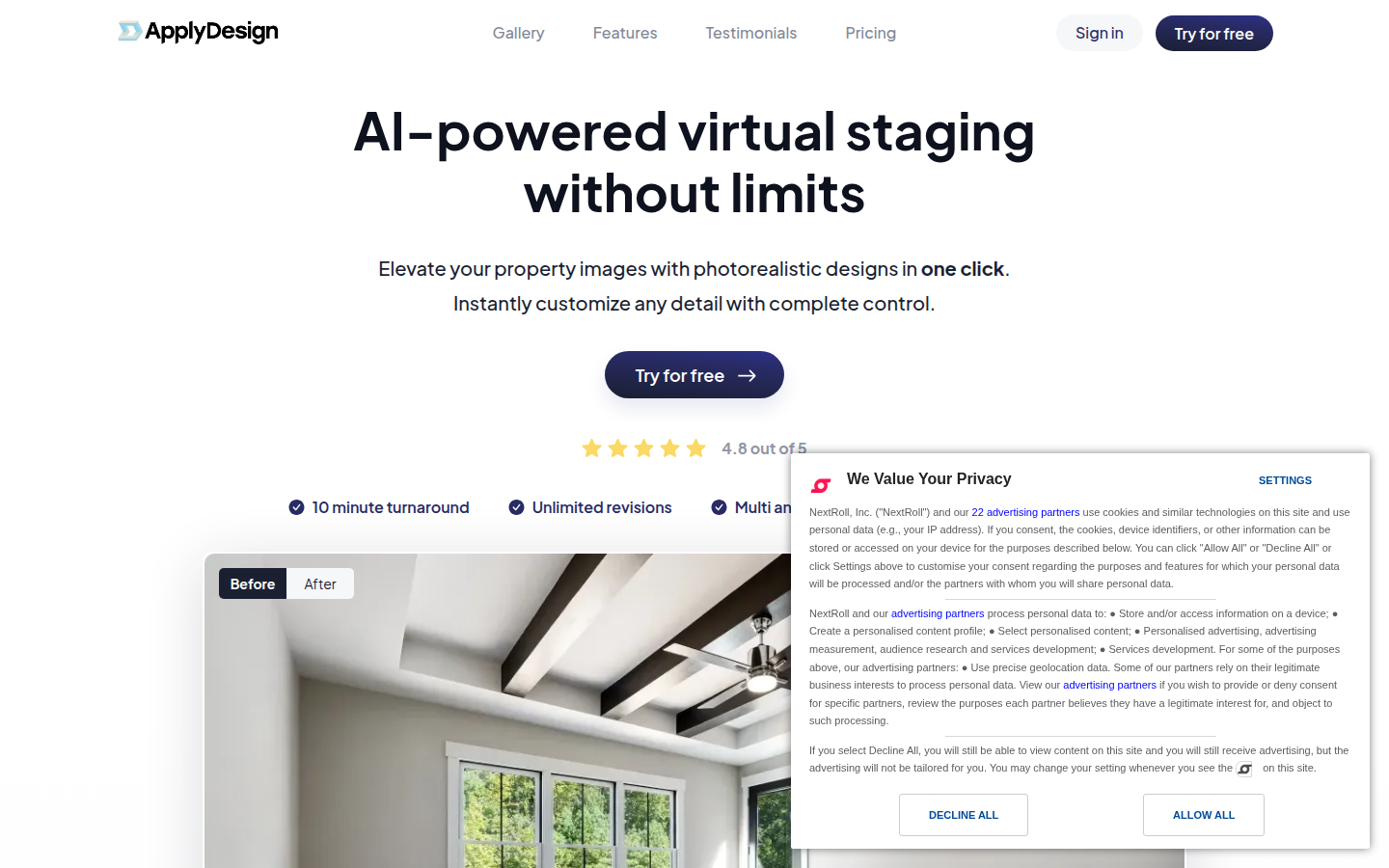
Apply Design focuses on virtual staging as a per-image workflow. It offers two modes, a one-click AI option and a drag-and-drop DIY editor, plus features that matter to marketing-heavy listings like 360° panorama staging, listing video, and single-property websites.
AI HomeDesign works more like a listing-photo suite. It groups virtual staging, photo editing, and renovation visualizations into one toolbox of tools under one credit pool, so the same account can stage, declutter, enhance, and create dusk exteriors without sending images to a second vendor.
The decision rule is simple: Apply Design fits teams that want hands-on placement or 360° deliverables and only stage a small number of images. AI virtual staging plans fit teams that process full sets every week and want one subscription to cover multiple photo jobs.
Pricing changes often in this category. This comparison reflects published pricing and product screens checked on September 3, 2026.
Head-to-head snapshot on pricing, speed, and workflow
Apply Design and AI HomeDesign both aim at listing-ready imagery, but they charge and iterate in different units. Apply Design prices work per image through Apply Coins, while AI HomeDesign prices work per month through photo credits.
On Apply Design’s pricing page, the best-case coin rate is listed at $7 per coin at higher volume, with DIY staging at 1 coin for a 2D image and one-click AI staging at 1.5 coins, plus a stated 10 to 15 minute turnaround per one-click image.
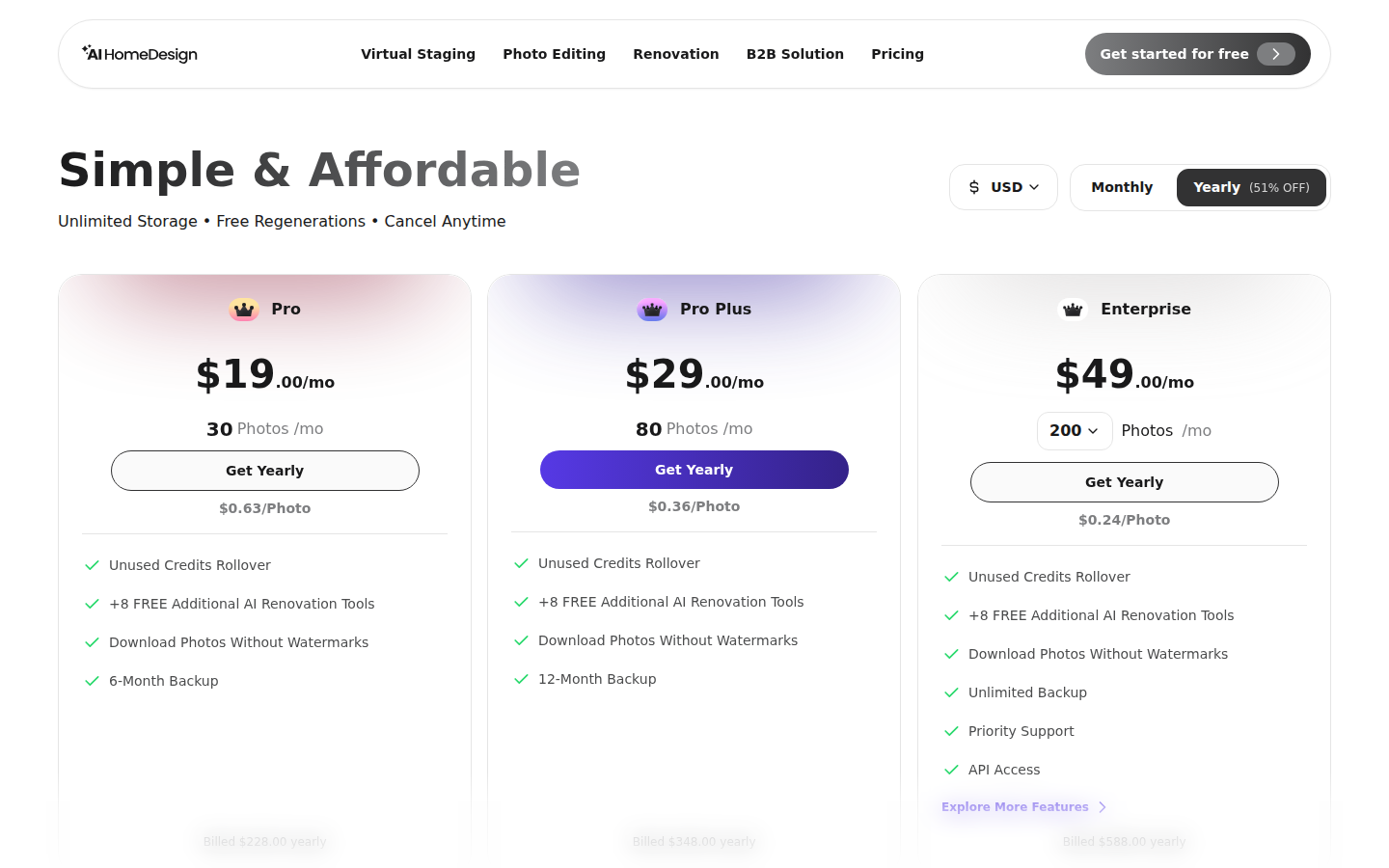
AI HomeDesign runs on a subscription ladder with credits. Each generation uses 1 credit and returns four renders to choose from, and paid tiers include free regenerations so a second attempt does not trigger a second charge.
The free-start experience also differs. Apply Design documents a first image free trial, but does not present it as an ongoing free tier. AI HomeDesign is free to start with no credit card, and free-plan outputs are watermarked while paid plans download without watermarks.
Pricing compared for real listing sets
Per-image billing works best when image count stays low. Apply Design’s DIY option can land at $7 per staged 2D image at the best coin tier, but that assumes higher coin volume. Smaller buys price coins higher, so the same DIY image can cost more on a one-off listing.
Scenario A shows the small-volume case. A vacant listing that needs 5 staged photos in DIY mode consumes 5 coins. At the up-to-9 tier, that is $10 per coin, so the set prices at $50. The $7 per coin rate only unlocks at a 20-coin minimum purchase, a $140 outlay, so a standalone 5-photo set still prices at $50.
AI HomeDesign prices that same 5-photo set as part of a plan allowance. Pro runs $19 per month billed yearly for 30 photos per month, which can cover the entire set in one billing period. Pro Plus runs $29 per month billed yearly for 80 photos per month, and Enterprise runs $49 per month billed yearly for 200 photos per month.
Scenario B shows the volume case. An occupied listing workflow often needs 10 processed images per listing, and a small team might run 4 listings per month for 40 images. Under Apply Design at the best coin tier, DIY staging prices those 40 images at $280, and one-click AI staging prices them at $420 at $10.5 per image. Under a credit plan, that same monthly volume fits inside AI HomeDesign Pro Plus at 80 photos per month.
The practical break-even shows up quickly. Per-image billing stays reasonable for roughly two or three staged photos a month. Past that, a monthly plan usually produces a lower effective cost per image and simpler budgeting.
Speed and throughput on deadline day
Speed rarely matters on a single hero image. A 10-minute queue can still deliver before a photographer leaves the driveway, and manual DIY placement can take longer than any render time if the furniture needs to match a seller’s style.
Throughput becomes the issue on the day a listing goes live. A 10-photo set with one-click staging at 10 to 15 minutes each can fill a large chunk of an afternoon, especially when a few rooms need a second pass.
AI HomeDesign frames the same workflow differently. It positions MLS-ready output in under 5 seconds for staged photos, then returns four variations per credit so the selection happens before another generation.
A realistic planning rule helps teams set expectations. Same-day delivery works for either tool, but a safe internal promise is within 1 day for a full listing set that includes edits and a second attempt on a few rooms.
Control and consistency across angles
Apply Design earns its reputation for control because it gives teams a true DIY editor. That editor supports drag-and-drop placement, unlimited DIY revisions, and a Multi-Angle Consistency feature so a design can carry across multiple photos of the same room.
That control suits designers, photographers, and listing agents who want the furniture to land in an exact spot. It also suits high-scrutiny sellers who care about where a bed sits relative to a window or where chairs align to an island.
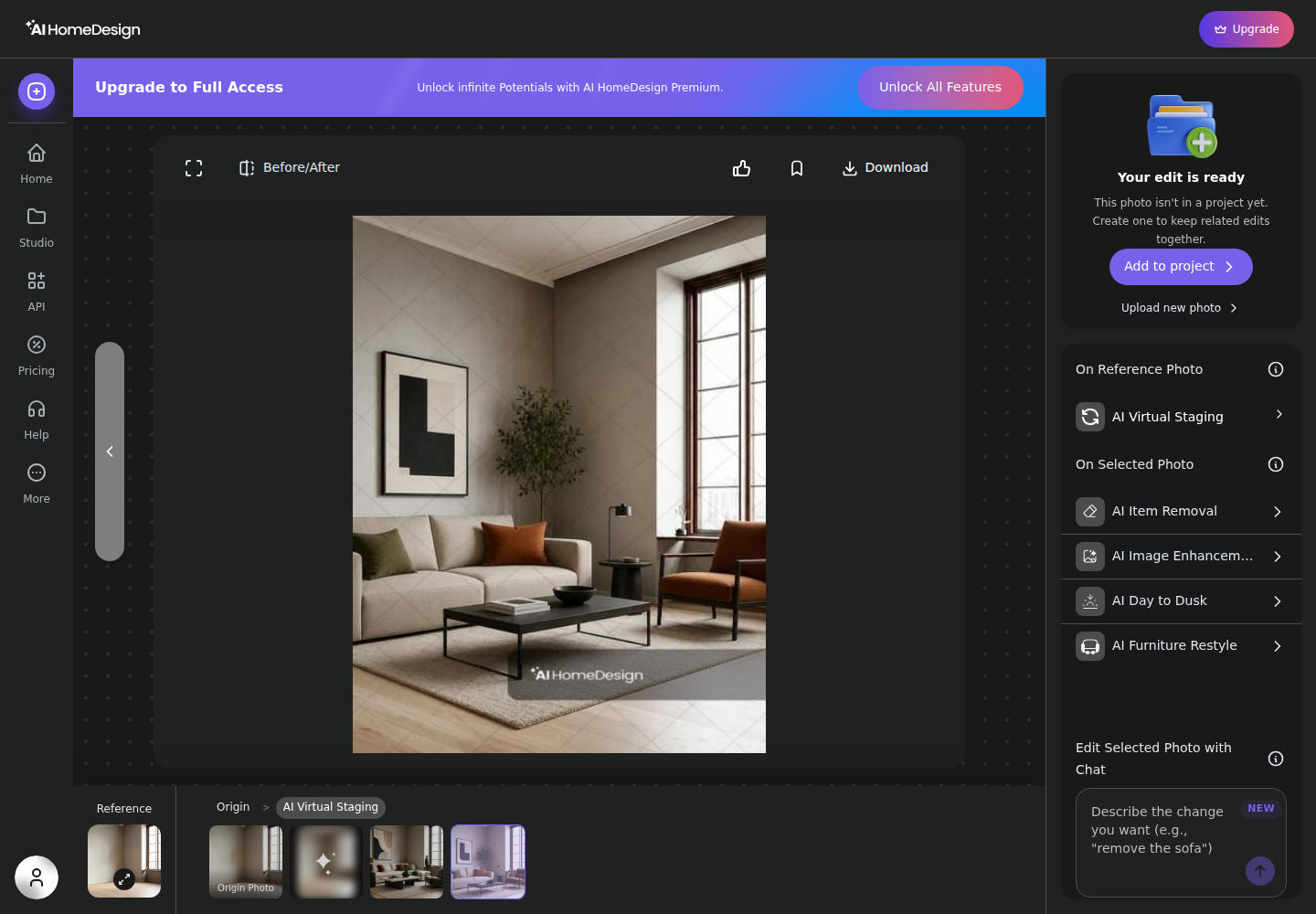
AI HomeDesign leans into guided control. Every tool follows the same upload, options, generate flow. Space selection comes first, which keeps scale consistent. Paid plans include free regenerations, and each credit returns four renders so teams can pick the closest fit before spending again.
For a broader look at style variety and restyle workflows, see Interior AI vs AI HomeDesign.
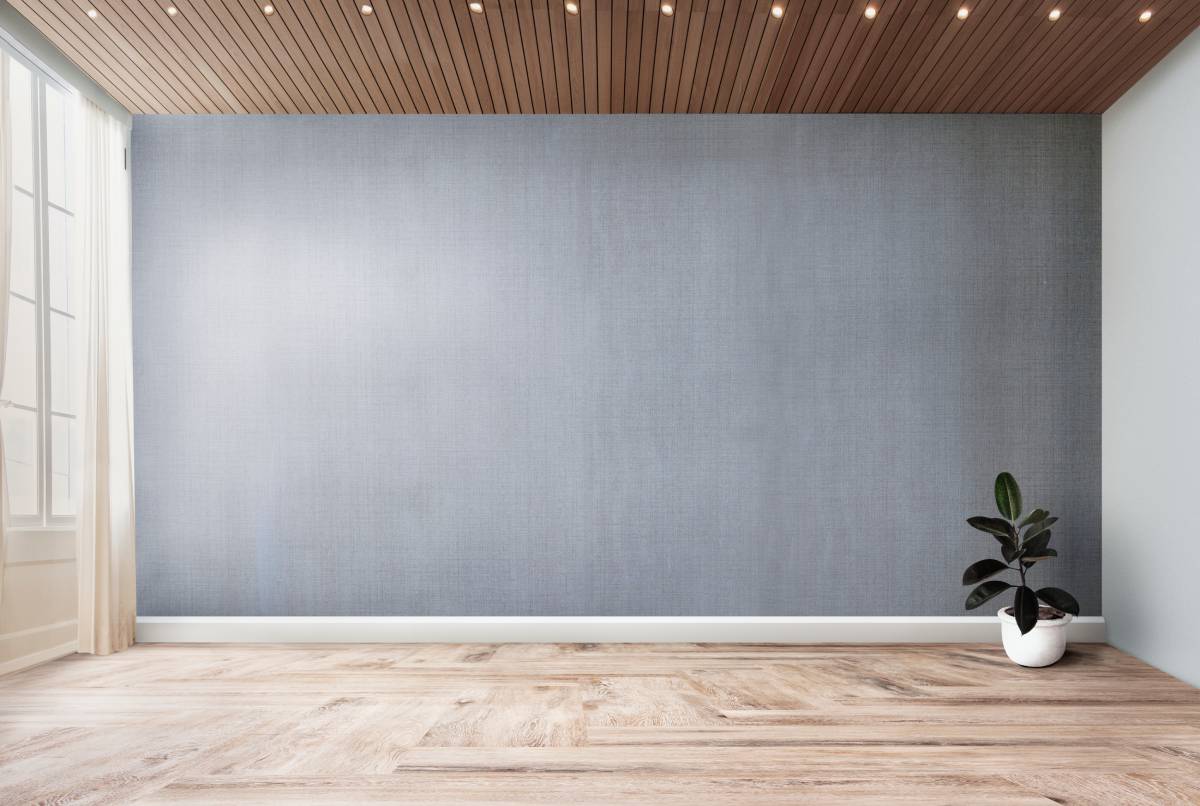
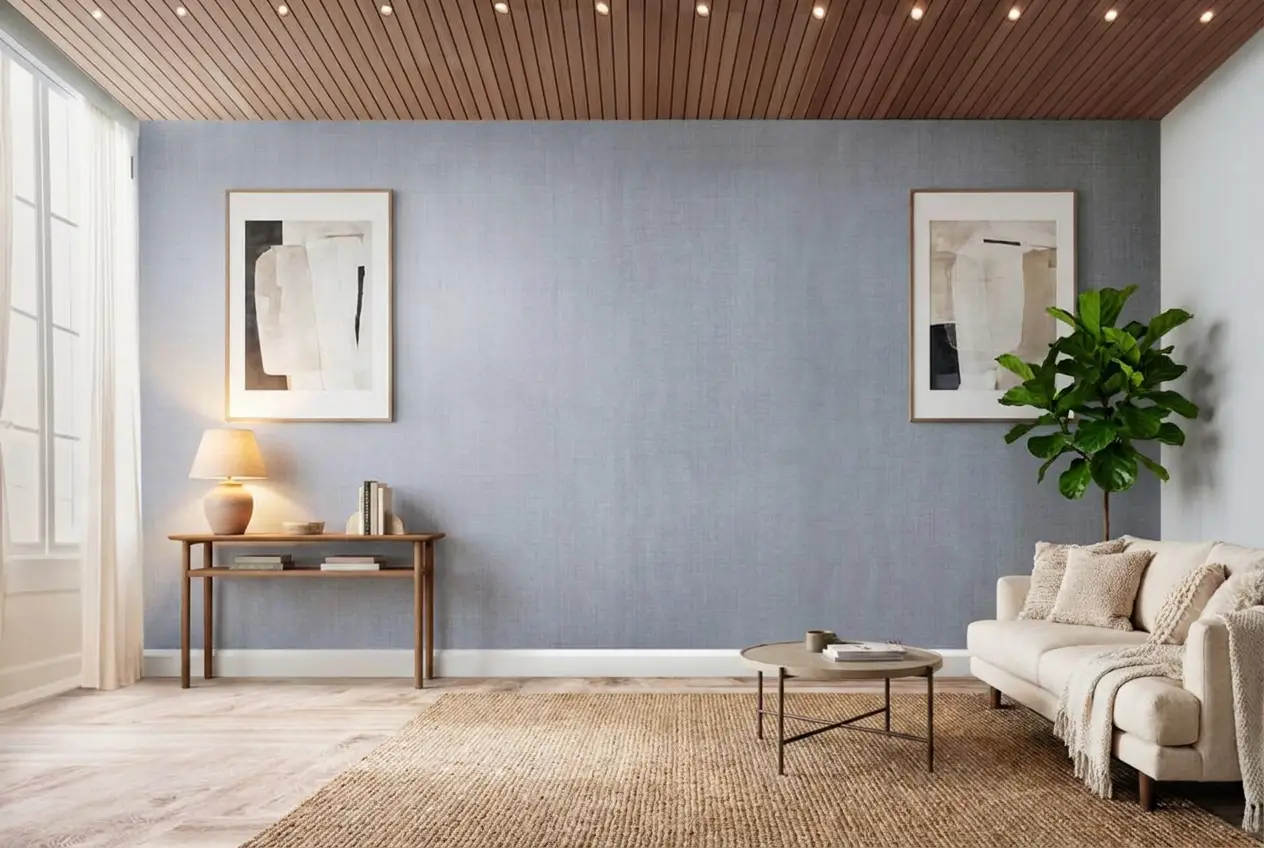
Stage your first listing in under 5 seconds
15 space types, 10 styles, MLS-compliant by default. All 11 tools on one account. Free trial credits, no credit card.
Start staging freeCoverage across a full listing set
Most listing sets need more than staging. A typical package mixes exteriors, a kitchen, a living area, bedrooms, and at least one lived-in room that needs declutter before any restyle looks believable.
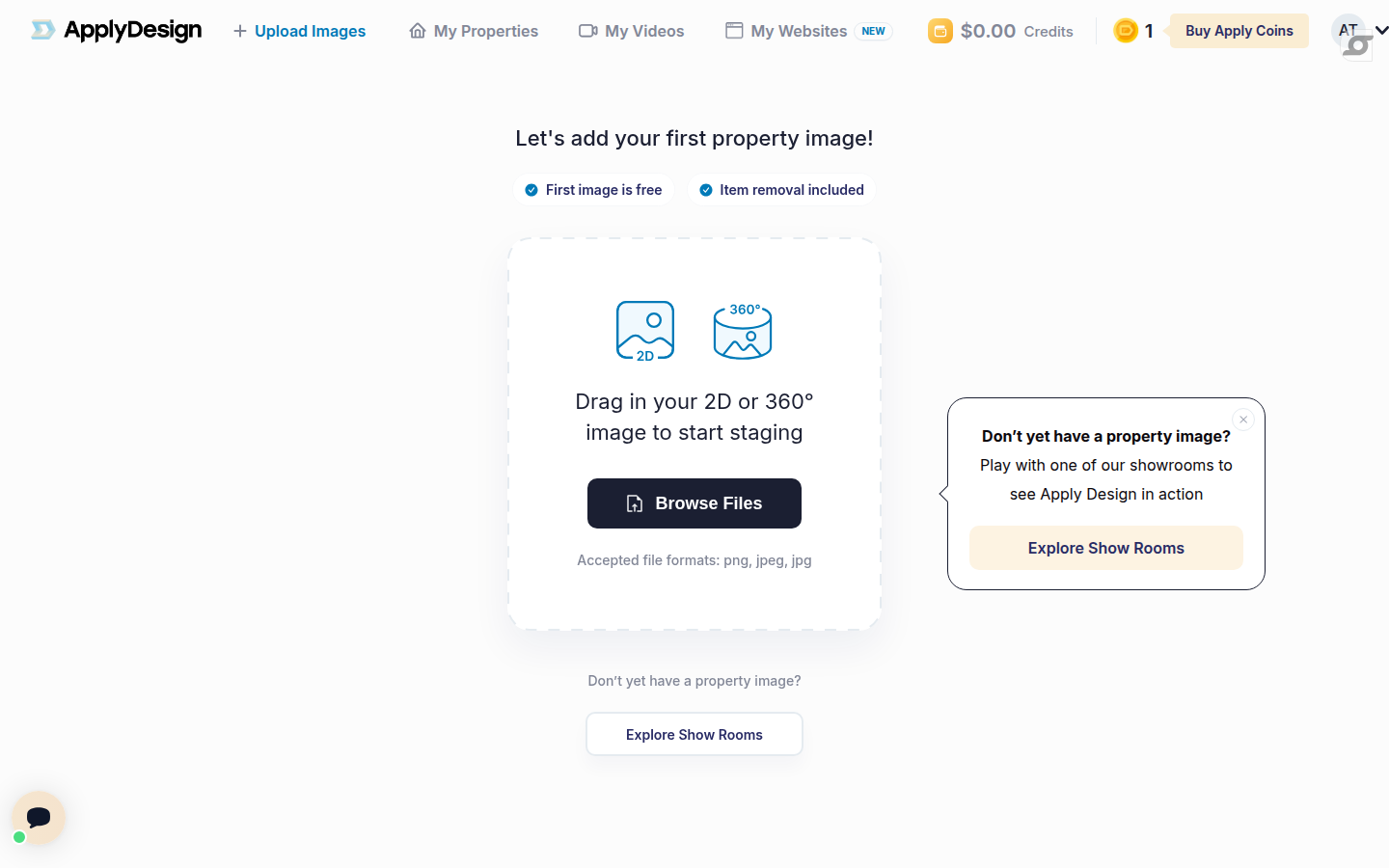
Apply Design covers virtual staging in two modes, includes item removal, and supports both 2D and 360° images. It also offers listing media that many staging tools skip, including AI property video and single-property websites.
AI HomeDesign covers a different spread under one credit pool. It includes AI Virtual Staging, AI Item Removal, Image Enhancement, AI Day to Dusk, and a renovation hub for surface changes like wall, floor, ceiling, and backsplash updates.
MLS workflows run on standardized data fields, which is one reason teams keep a consistent naming and disclosure habit across platforms. The RESO Data Dictionary explains how real estate data standards get defined and shared.
Day to dusk work also changes the vendor math fast, because a staging-only tool can still leave twilight edits unfunded. A separate breakdown sits in day-to-dusk editing costs compared.
Occupied listings: A step-by-step workflow that holds up
Occupied listings punish the wrong order of operations. If staging happens before declutter, the output can preserve clutter shadows or keep personal items that should have been removed. If enhancement happens too early, it can amplify the mess.
Both tools can handle occupied rooms, but they lean on different levers. Apply Design pairs staging with included item removal and lets teams fix placement by hand. AI HomeDesign splits the workflow into dedicated tools and supports chaining a selected result into the next edit without re-uploading.
Common problem spots repeat across both workflows: leftover smudges where an object was removed, furniture scale that does not match a door frame, reflections that do not match the room, and inconsistent style across two angles of the same space.
Shoot wide, level, and consistent
Keep vertical lines straight and hold the same height across angles. A consistent camera height makes multi-angle design matching easier later.
Remove clutter before any restyle
Run item removal first, then check wall edges and floor lines. Fixes land faster before new furniture and new shadows enter the frame.
Choose staging or restyle based on the room
Stage truly vacant rooms. Restyle furnished rooms when the layout works and only the look needs to change.
Lock the style across angles
Use a single style choice for every angle of the same room. If one angle uses a different look, buyers notice the mismatch.
Enhance lighting and finishes last
Run enhancement after the room looks correct. Late enhancement avoids brightening clutter that should have been removed.
A quick realism QA pass keeps edits listing-safe:
When judgement calls matter more than speed, a done-for-you editor can still make sense. That tradeoff is covered in self-serve vs done-for-you staging.
MLS rules, disclosure, and staying out of trouble
Disclosure does not change with the tool. Virtually staged images need clear labeling, and edits should not hide defects or alter permanent structure. The safest rule is simple: if a buyer would not see it on a walkthrough, it should not appear as a factual condition in a listing photo.
A practical disclosure line that works across many MLS systems is: “virtually staged” in the photo caption where allowed, and “some images have been virtually staged” in public remarks. Keep at least one unedited photo of each staged room available for buyers who ask.
Teams also need a boundary on what belongs in the deliverable. The MLS photo set should include only the images, consistent filenames, and disclosure text. Commission splits, fee discussions, and pricing strategy belong in the seller conversation, not embedded into marketing assets.
For teams comparing more tools in the same category, the broader landscape sits in the AI virtual staging alternatives guide. For general context on how staging fits real estate marketing, the National Association of REALTORS has published a Profile of Home Staging.
The clear pick
Choose AI HomeDesign when
AI HomeDesign fits agents and photo teams that process full listing sets and need staging plus item removal, enhancement, and day-to-dusk from one credit pool on a deadline.
Choose Apply Design when
Apply Design fits teams that want hands-on furniture placement, need 360° panorama staging, or sell listing media like single-property websites and videos alongside staging.
Frequently asked questions
How much does Apply Design cost per image?
Apply Design bills per image through Apply Coins. The published tiers list coins at $10 each up to 9, $8 for 10 to 19, and $7 at 20 or more. DIY 2D staging uses 1 coin per image, while one-click AI 2D staging uses 1.5 coins per image. 360° images cost more coins than 2D.
Is Apply Design free?
Apply Design does not publish an ongoing free plan, but it does document a first image free offer with no credit card required. The same product also includes single-property websites, and the first website is listed as free. After the trial image, pricing moves to Apply Coins purchases.
How fast is each tool?
Apply Design lists a 10 to 15 minute turnaround per image for its one-click AI staging flow. AI HomeDesign positions listing-ready output in under 5 seconds for staging, and each generation returns four renders under one credit. In practice, speed matters most when an entire set needs multiple passes.
Do revisions cost extra?
Apply Design states unlimited revisions, and unlimited DIY revisions in its editor. AI HomeDesign handles iteration through free regenerations on paid plans, plus four variations returned per credit for each generation. The difference is less about quality and more about whether a team prefers manual placement or fast re-generation.
Can either tool stage a 360° panorama?
Apply Design supports both 2D and 360° images, and it prices 360° staging at a higher coin rate than 2D staging. AI HomeDesign focuses on standard listing photos and does not offer 360° panorama staging in its toolbox. For tour-first marketing, that single feature can decide the purchase.
Do virtually staged photos need MLS disclosure?
Yes in practice. Listings should label images as virtually staged where the MLS allows captions, and also note it in public remarks. Keep the original unedited files, and avoid edits that remove defects or change permanent fixtures and structure. The obligation stays the same no matter which tool generates the image.