Best Mood Board Apps for Interior Designers & Stagers
A mood board app gets judged in a single moment, the second a client has to say yes or no. Pretty collage tools often fall apart right there, because a paid project needs sourcing, permissions, and a file that survives hand-off.
The five options below cover the main ways designers and stagers actually work, from iPad-first boards to business platforms. The goal is a board that locks a direction fast, then carries the decisions into the next step.
What a Mood Board Has to Do in Paid Work
A paid mood board does four jobs. First, it pins down a direction before money gets spent. Second, it cuts ambiguity out of client conversations. Third, it carries sourcing decisions, so “that sofa” becomes a specific item with a link, finish, and price range. Fourth, it becomes the reference point for install day, or for listing photos.
Interior designers and home stagers use boards differently. Designers often need a concept plus a plan for purchasing. That means specs, alternates, and budget notes that support a proposal or retainer. Stagers need speed and clarity. The board has to get approved on one call, then translate into furniture and styling choices that photograph well.
That difference explains why “inspiration boards” cause scope creep. A Pinterest-style collection communicates taste, not decisions. A paid board works like a decision document. It makes approval trackable, and it reduces the odds of a late pivot.
For teams that also use AI-assisted visualization, it helps to keep the jobs separate. AI interior design sits on the “show the idea in the room” step, not the “collect references” step. The board still matters, because it sets the rules the room image has to follow.
How to Choose a Mood Board App for Paid Work
A mood board app for business work rises or falls on hand-off. The fastest collage tool can still cost hours if every approval requires a screenshot and a follow-up spreadsheet. The right pick depends on how far the board needs to travel after sign-off.
Platform fit comes first. iPad plus Apple Pencil workflows win for live presentations, quick cutouts, and markup. Browser-first tools win for cross-device work, team collaboration, and shared client portals.
Next, look at the free tier ceiling. A free plan often works for a single concept board, then hits a hard cap mid-project. A practical screening question: does the plan cover the full revision round, or does it force an upgrade during feedback?
Exports decide whether a board becomes a deliverable. Client-ready PDFs matter for presentations. Editable formats matter when another designer, a photographer, or a marketing team needs to reuse the layout. Spreadsheets or spec sheets matter when a purchase decision follows. Tools like AI room design tools handle visualization, but they still rely on a board to carry palette and sourcing intent.
The Workflow From Intake to Client Sign-Off
Most boards fail before the first cutout lands on the canvas. The intake is vague, the goal is emotional, and the board turns into a debate about personal taste. A tighter workflow makes the board do its job as a decision document.
Start with constraints that can be approved quickly. A short brief can cover room function, lifestyle, and “hard no” materials. That gives the board a frame. It also makes revisions feel like progress instead of backtracking.
Next, decide what belongs on the board and what belongs in conversation. A client-facing board should carry visible decisions: palette, key furniture silhouettes, and the primary finishes. The deeper reasoning can stay off the board and live in the presentation call. That split keeps the deliverable clean while still allowing a designer to explain trade-offs.
Stagers and listing agents often work inside a tight listing timeline. That makes approval mechanics part of the creative process. A simple practice is to send a view-only board for sign-off, then keep a separate working version for edits. For stagers who also plan to visualize the look inside actual listing photos, DIY virtual staging with AI can pair with the board as a separate production step.
The Five Tools With Verified Pricing and Limits
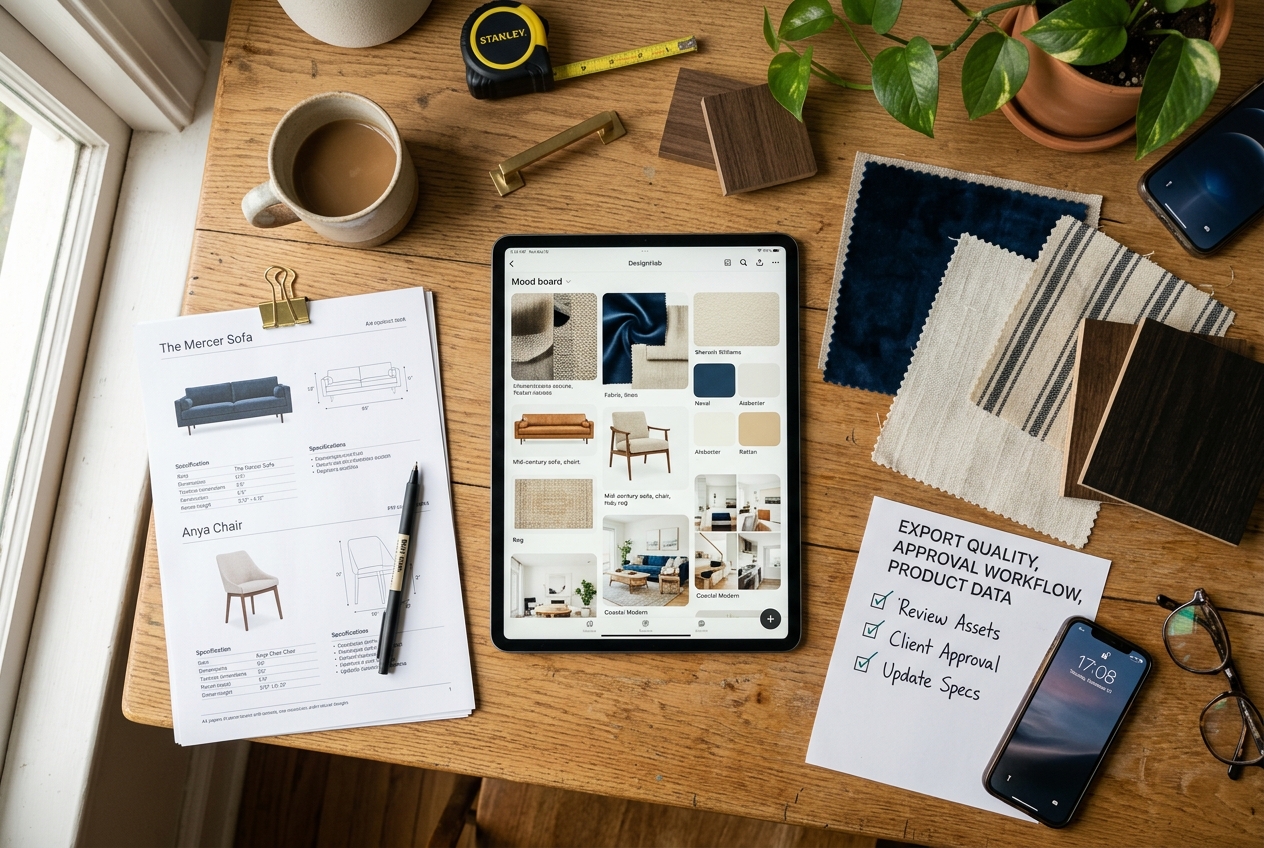
A “best app” list usually misses the hard parts: exports, permissions, and what happens after the board gets approved. This section treats each tool as a business document workflow, not a collage.
Pricing and free-tier limits below come from the sources listed for each tool. Those details matter because they shape when a project hits an upgrade wall, and which exports stay locked behind paid plans.
Each tool write-up includes an honest boundary. The point is not to find perfection. The point is to pick the tool whose limits match the job.
A final note before the cards: the board is not the marketable output for stagers. Buyers and sellers see room photos. The board only works if it can travel into that next step without redoing the work.
Where each tool sits
Price against speed. Bottom-left is cheap and fast, top-right is pricey and slower.

Redesign any room in a few clicks
7 styles and 30 colour palettes, from one photo. All 11 tools on one account. Free trial credits, no credit card.
Start designing freeThe tools in detail
Morpholio BoardTop pick
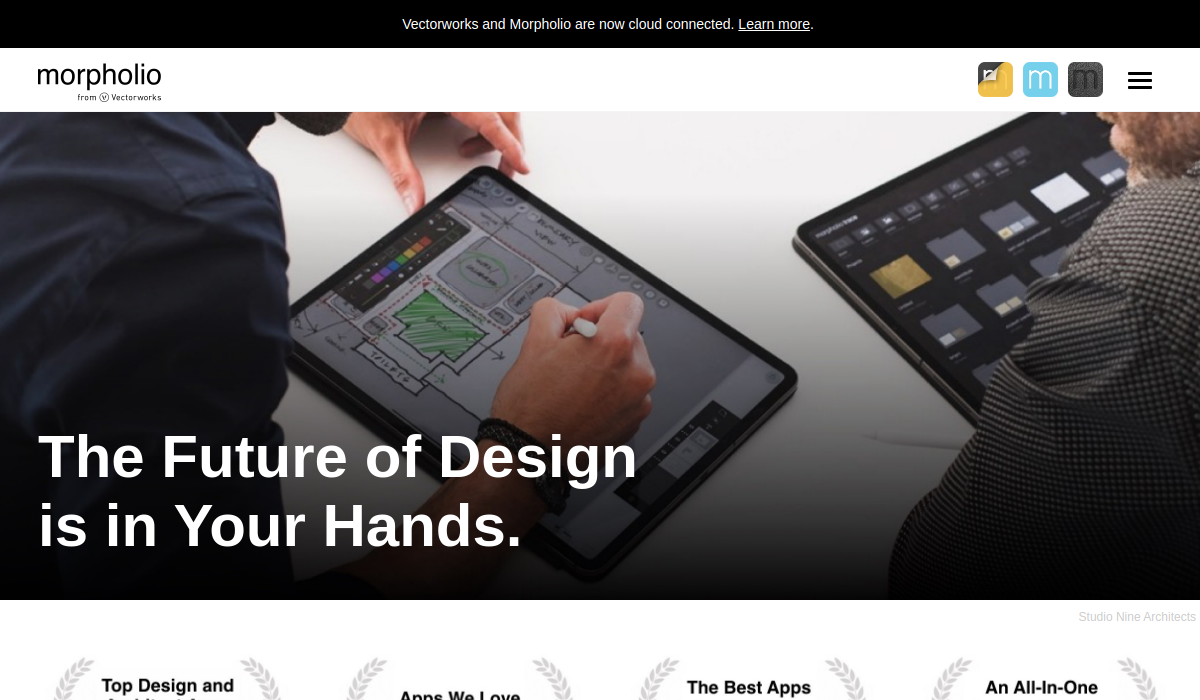
Morpholio Board fits iPad-first designers and stagers who want interior-specific workflows rather than a generic canvas. The strongest move is treating Pinterest as an input, then converting pins into a working board with lists and exports.
Morpholio Board publishes freemium pricing and free tier limits that include up to 5 projects on the free tier, with in-app subscriptions listed from $4.99 and Premium and Pro tiers also listed. Premium gates key hand-off features like export to Excel, PDF, or PSD.
Best for: iPad presentations with shopping-list style hand-off.
Pros: Pinterest Portal intake, Magic Lift background removal, export paths built for interior work.
Cons: export formats that matter most sit behind Premium, and the workflow assumes iPad comfort.
View Morpholio Board →
DesignFiles
DesignFiles works when the board has to live inside a business system. It suits studios billing e-design or full-service packages where a board connects to product tracking, spec sheets, and a client portal.
The pricing figure in this roundup comes from the cited source, which lists DesignFiles at $30/mo and describes it as a paid platform rather than a freemium tool. Vendor tiers and per-user add-ons change over time, so teams should confirm the current plan details on the vendor’s plans page before budgeting.
Best for: designers who need product lists with cost totals, not just a collage.
Pros: sourcing workflow with saved product links, paint libraries, and boards tied to client communication.
Cons: not a free-tier sketchpad, so it makes sense only when the business workflow gets used.
View DesignFiles →Canva
Canva wins on speed and familiarity. For many designers, stagers, and agents, the fastest path to a client-ready board is a template-driven layout that looks like a finished presentation.
Canva is described as free with a paid upgrade available, and that paid upgrade matters if background removal is part of the workflow. Canva’s strength is presentation, not sourcing, so any clickable spec tagging or cost totals usually live outside the board.
Best for: pitch boards, seller-facing one-pagers, and branded PDFs.
Pros: templates, fast layout, and presentation export options.
Cons: limited sourcing structure, so commercial work often needs a separate product list.
View Canva →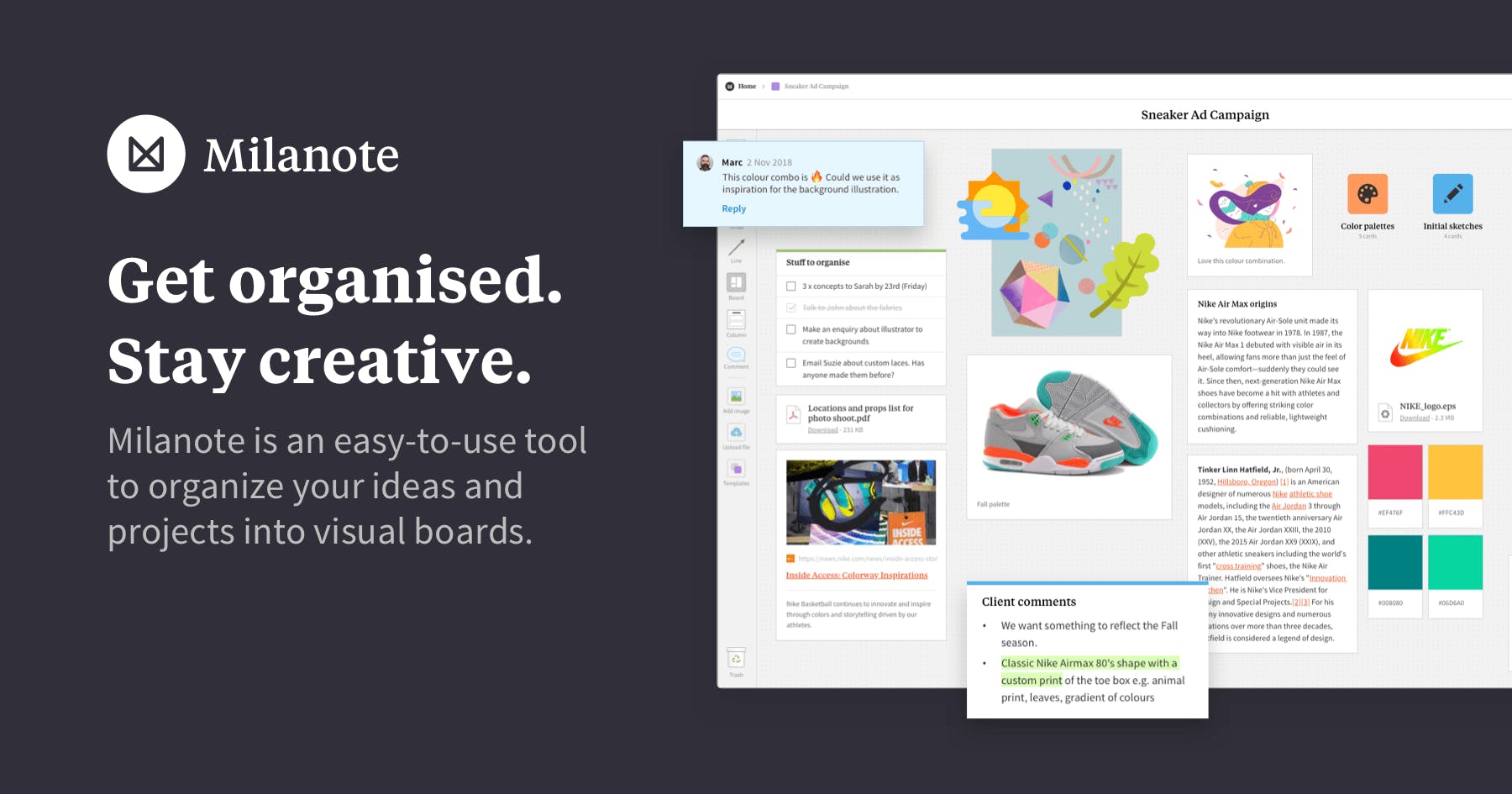
Milanote
Milanote is a good fit for the messy middle. It works after inspiration collection but before a formal board deck, when a project needs images, notes, and links living together in a way clients can comment on without rewriting the layout.
Milanote lists a free plan with hard caps and a paid plan at $9.99 per month in the cited plan summary. The practical differentiator is the collaboration model, which supports edit, comment, and view-only access.
Best for: early concept development with controlled client collaboration.
Pros: mixed media boards, high-quality PDF export, and permission levels that reduce revision chaos.
Cons: it can feel less like a designed presentation unless the layout gets curated.
View Milanote →
Pinterest is the strongest tool on the list for discovery. It also creates the most confusion, because “board” sounds like “deliverable.” Pinterest is a collection system, not a client-ready decision document.
Pinterest is described as free to use and stays valuable as an input layer that feeds a working board tool. Its limitation is structural: Pinterest does not lock layout, scale, budget, or product availability into a single client-ready output.
Best for: finding and organizing references quickly.
Pros: discovery, saving, and shareable collections.
Cons: weak as a deliverable, because it does not carry sourcing data or a controlled presentation.
View Pinterest →What it really costs per listing
Pick a tool, set how many listings you do a month, and see the real per-listing cost. Only the 3 tools that publish a monthly price are listed.
How to Build a Board Clients Approve in Six Steps

A board that gets approved fast looks disciplined, not decorated. It tells a clear story about function, finishes, and cost sensitivity, even when the images come from different places.
Before the steps, one decision matters: build one master board, then export a client-facing version. The master can hold alternates and notes. The exported board stays clean and becomes the approval artifact.
Stagers can also translate the same palette into room decisions faster by keeping a repeatable checklist for each room type. Room-by-room house styling offers a useful mental model for keeping the look consistent across a full home.
The steps below work across all five apps, even though the mechanics differ.
Lock the brief in one paragraph
Write the room, the function, and three non-negotiables. Examples include “durable fabric,” “no brass,” or “keep existing floors.” This brief belongs on the board or on the first slide, so later feedback has a reference point.
Choose a palette with a hard limit
Pick three anchors, one accent, and one metal. Add real swatches, not just adjectives. A client can approve “soft white walls with warm oak and black hardware” faster than a collage of similar beige rooms.
Keep cutouts in believable scale
Cut and place items so size relationships read correctly. A large sofa should not read the same size as an accent chair. When scale stays consistent, clients argue less about “too big” or “too heavy” because the board feels grounded.
Match lighting and white balance across images
Edit or select product images that share a similar color temperature and light direction. Mixed lighting makes a board look like a screenshot dump. It also muddies the palette, which triggers revisions that feel like “something is off.”
Annotate intent and constraints
Add short notes that explain why an item belongs. Notes like “performance weave for pets” or “hide TV cable run” reduce subjective feedback. When the app supports it, include links and a budget note, because silence on cost invites late changes.
Add an explicit scope line
Include one sentence that sets the boundary. For example: “This board sets direction and key finishes; final selections depend on availability and budget approval.” That one line prevents a mood board from being treated like a purchase order.
Hand-Off That Prevents Endless Revision Rounds

Most “endless revisions” problems are permission problems. A board shared with edit access invites well-meaning rearranging. A board shared as view-only forces feedback to land as comments, which keeps ownership clear.
Exports matter as much as layout. A screenshot works for a quick text message, but it fails as a deliverable because it loses links, scale cues, and notes. A print-quality PDF works for approval and for filing. An editable format matters when another designer, photographer, or marketing teammate needs to reuse the composition. A spreadsheet or spec sheet matters when purchasing follows.
A clean rule helps: put decision data in the deliverable, and keep negotiation data for conversation. Decision data includes palette, key items, and any sourcing links that drive the direction. Negotiation data includes alternates, trade-offs, and fee discussions. Design fees or markups belong in a proposal, invoice, or contract, not on the board itself.
Some projects break the standard workflow. Tenant-occupied homes may need a lighter “direction only” board with fewer items. Luxury projects may require vendor approvals, so a board needs alternates ready. Tight listing timelines may require an approval PDF first, then a sourcing pass second. In all cases, strong presentation supports business outcomes, which is why how visual marketing moves listings matters to both designers and stagers.
After the Board: Making the Concept Show Up in a Room Photo

A mood board communicates direction. It does not produce the image the market sees. For stagers and listing agents, the deliverable that changes buyer behavior is still the room photo, either physically staged or virtually staged.
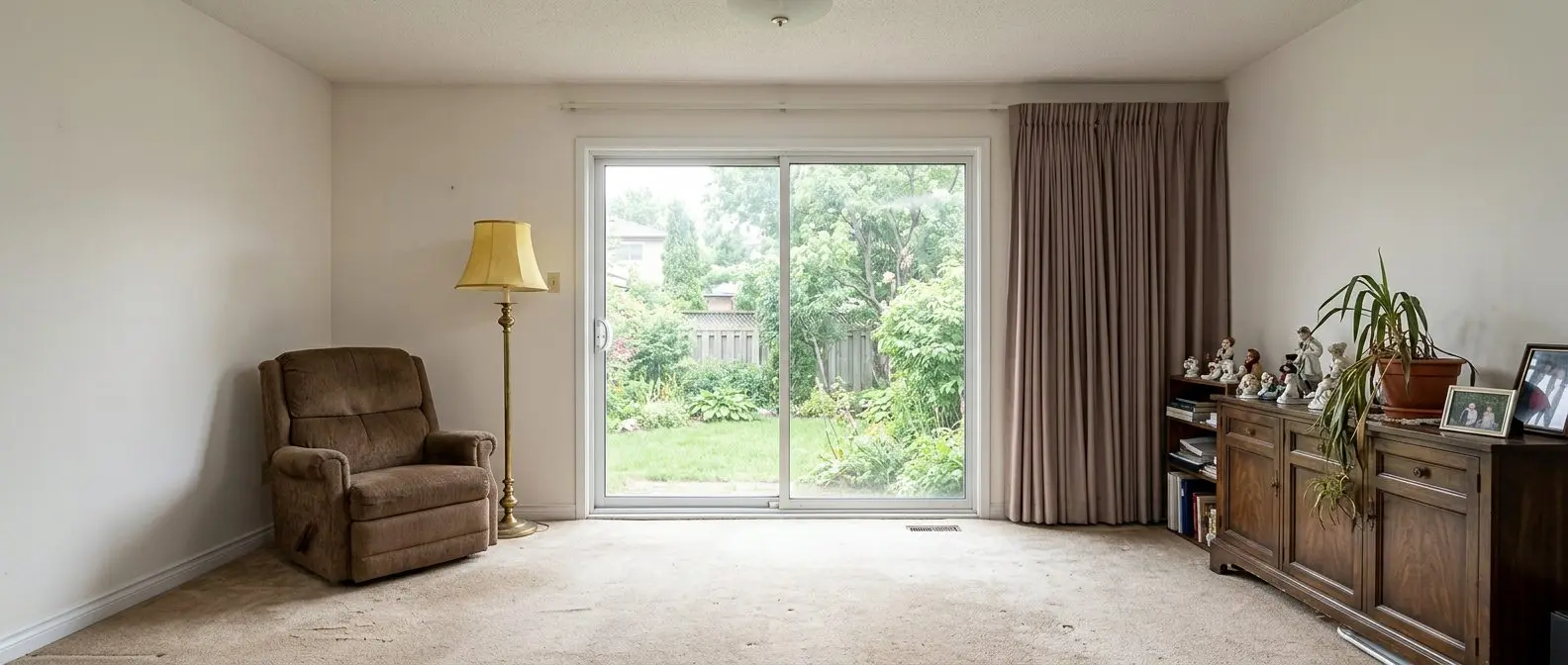
That gap matters most on vacant listings and dated interiors. A board can promise “light oak, matte black, warm white,” but the seller and the agent still need to see that direction in the actual room geometry. That is where tools built for listing visuals come in, after the board is approved.
AI HomeDesign sits on that next step. It offers three hubs, virtual staging, photo editing, and renovation, across eleven specialized tools, with seven renovation tools. It also supports different delivery surfaces, including a web app, B2B workflows, a REST API, and an MCP server. One account and one shared credit pool keep revisions simple, and unlimited free regenerations support feedback rounds without treating every tweak as a new line item.
For stagers turning a concept into listing images, turn the approved direction into staged room photos covers the workflow from original photo to staged output. When the board calls for new finishes or fixture updates, virtual renovation for dated rooms helps show that change in place.
Disclosure also belongs in the production step. MLS Rules and state guidance vary, but a common plain-language label is: “This image has been virtually staged.” For broader edits, “This image has been digitally altered” keeps the disclosure clear. Teams often add a Virtually Staged Watermark directly on the image, then repeat the disclosure in the photo remarks, based on local MLS rules.
Find your pick
Tap your situation for a quick recommendation.
Frequently asked questions
The best free option depends on what “free” needs to cover. Pinterest works well for collecting inspiration, while Canva offers a free plan for quick, presentable layouts. Milanote offers a free plan with caps, and Morpholio Board’s free tier includes up to 5 projects. The practical choice is the one that still supports a full feedback round before an upgrade.
Many do, but mainly as an input rather than the final deliverable. Pinterest is strong for discovery and organizing references into collections, which can speed up early concept work. The limitation is that a Pinterest board does not communicate scale, budget, or a controlled presentation layout, so it rarely works as the only client hand-off.
A client-ready board should show the room or concept label, a disciplined palette, and key pieces placed at believable relative scale. It should also include short annotations that explain intent, such as durability needs or layout constraints. When the app supports it, a product list with links and cost totals reduces last-minute changes after approval.
Cost ranges from free plans to full studio subscriptions, and the “real cost” often shows up in what exports stay locked behind paid tiers. Some tools price as low-cost monthly subscriptions, while others bundle boards into a broader system with portals, spec sheets, and purchasing workflows. Budgeting works best when the free-tier ceiling gets checked before starting a client project.
Stagers usually need speed, clarity, and a format that supports fast approval. Canva can produce a clean, seller-facing one-pager quickly, while Morpholio Board adds interior-specific workflows on iPad, including shopping-list style outputs. Pinterest helps with discovery but usually needs a second tool to turn references into a client-ready decision document.
Some can, but capabilities vary by app and plan. Morpholio Board includes a background removal tool, and Canva offers background removal on paid plans. Some business platforms also include clipping tools as part of sourcing. Clean cutouts matter because inconsistent edges and shadows make a board look less credible, which slows approvals.